WP Rocket is a premium WordPress caching and performance optimization plugin designed to make websites load faster without requiring users to configure everything manually. It includes features for page caching, cache preloading, browser caching, CSS and JavaScript optimization, LazyLoad, database optimization, and other performance improvements.
But is WP Rocket actually worth paying for in 2026?
In this WP Rocket review, we will look at its features, pricing, performance options, advantages, disadvantages, ease of use, and alternatives so you can decide whether it is suitable for your WordPress website.
What Is WP Rocket?
WP Rocket is a premium performance and caching plugin for WordPress.
Its main purpose is to improve website loading performance by creating cached versions of pages and applying different optimization techniques.
Without caching, WordPress may need to process PHP code and database queries for each request. Page caching allows a previously generated version of a page to be served more quickly.
WP Rocket also provides several additional optimization features from one dashboard, including:
- Page caching
- Cache preloading
- Browser caching
- CSS optimization
- JavaScript optimization
- LazyLoad
- Remove Unused CSS
- Database optimization
- Font optimization
- CDN integration
- Advanced cache controls
WP Rocket says its automatic features begin working immediately after activation, although the exact results depend on the website’s hosting, theme, plugins, content, and configuration.
How Does WP Rocket Work?
WP Rocket uses several techniques to reduce the amount of work required to display a WordPress page.
1. Page Caching
Page caching is one of the main features of WP Rocket.
Without caching, WordPress may need to process PHP code and database queries whenever a visitor requests a page.
With caching enabled, WP Rocket can create a static cached version that can be delivered more quickly.
This can reduce the processing required when visitors open your website.
2. Cache Preloading
WP Rocket can automatically preload cached versions of your pages.
This means your visitors do not necessarily have to be the first person to visit a page before its cache is generated.
According to WP Rocket’s documentation, cache preloading is enabled by default and can generate cached files before an actual visitor requests the page.
This is particularly useful after you clear the cache or publish new content.
3. Browser Caching
Browser caching allows frequently used files to be stored locally in a visitor’s browser.
When that visitor returns to your website, the browser may not need to download every file again.
This can reduce data transfer and requests for returning visitors.
4. CSS Optimization
CSS files control the appearance and layout of your website. Large or unnecessary CSS files can increase the amount of work required before a page becomes visually ready.
WP Rocket provides options such as:
- Minifying CSS
- Optimizing CSS delivery
- Removing unused CSS
The Remove Unused CSS feature attempts to keep the CSS required by a page while removing styles that are not being used. However, this feature should be tested carefully because aggressive optimization can sometimes affect the appearance or functionality of a website.f a website.
5. JavaScript Optimization
JavaScript can add functionality to WordPress websites, but large or poorly optimized scripts can also affect loading performance.
WP Rocket includes options to:
- Minify JavaScript
- Defer JavaScript
- Delay JavaScript execution
These features can reduce the impact of JavaScript during the initial page load.
Again, testing is important because some themes and plugins depend heavily on JavaScript.
6. LazyLoad
Images, videos, and iframes can contribute significantly to page size.
LazyLoad delays loading certain media until it is needed.
For example, images lower down on a long page may not need to load immediately when the visitor first opens the page.
WP Rocket provides LazyLoad options for images, videos, and iframes.
7. Database Optimization
WordPress databases can accumulate unnecessary data over time.
WP Rocket includes database optimization tools that can help clean certain types of database-related clutter.
However, database optimization is not a replacement for proper website maintenance and backups.
WP Rocket’s documentation also notes that some database optimization functions depend on the site’s database and server configuration.
WP Rocket Features
| Feature | What It Does |
|---|---|
| Page Cache | Creates cached versions of pages to improve loading speed. |
| Cache Preloading | Builds cache before visitors request pages. |
| Browser Cache | Stores files locally in visitors’ browsers. |
| CSS Optimization | Reduces and optimizes CSS delivery. |
| JavaScript Optimization | Helps reduce the impact of JavaScript loading. |
| LazyLoad | Delays loading of selected media until needed. |
| Remove Unused CSS | Removes CSS that is not needed on a page. |
| Database Optimization | Helps optimize supported database elements. |
| CDN Support | Works with CDN services to improve content delivery. |
| Font Optimization | Helps optimize font loading. |
| Advanced Rules | Provides more control over caching behavior. |
WP Rocket’s current documentation covers caching, file optimization, media, preload, database, CDN, fonts, and advanced cache rules.
WP Rocket Pricing in 2026
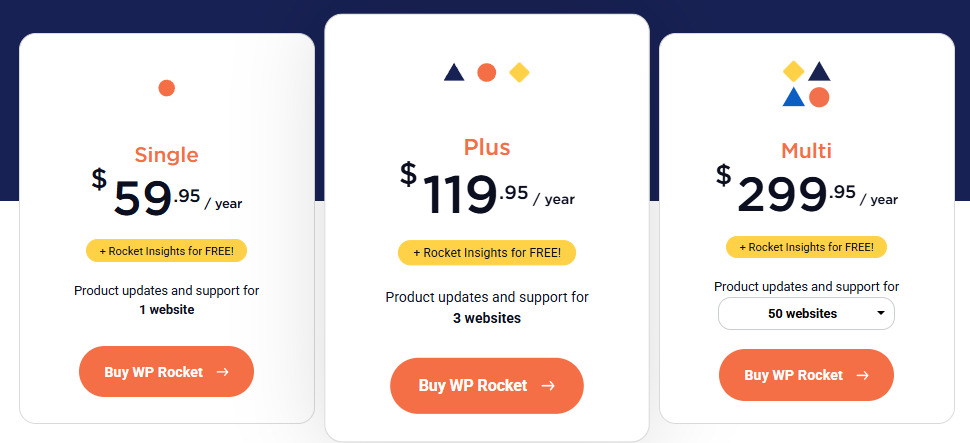
WP Rocket Pricing in 2026
WP Rocket is a premium WordPress plugin, so pricing is an important factor when deciding whether it is worth buying.
At the time of writing, WP Rocket lists its single-site license at $59 per year. The final amount may vary depending on taxes and your location.
WP Rocket does not offer a traditional free trial. Instead, it provides a 14-day money-back guarantee, allowing customers to request a refund within the applicable period.
The license renews automatically after one year unless automatic renewal is disabled from the account.
Is WP Rocket Worth Per Year?
For a personal blog or a small website with a limited budget, a free caching plugin may be enough.
However, WP Rocket can be attractive for website owners who want several performance features in one plugin and prefer a relatively simple setup.
The value depends on your website, hosting environment, technical knowledge, and whether the plugin saves you time.
WP Rocket Pros and Cons
Pros
1. Beginner-Friendly
One of WP Rocket’s biggest advantages is its focus on simplicity.
You do not need to manually configure dozens of complicated caching settings before seeing basic benefits.
2. Many Optimization Features in One Plugin
WP Rocket combines caching and several performance optimization features in one place.
This can reduce the need to install several separate optimization plugins.
3. Automatic Cache Preloading
Cache preloading can help ensure that cached pages are available without waiting for a visitor to request them first.
4. Useful File Optimization
CSS and JavaScript optimization options can be useful for websites with a lot of frontend resources.
5. CDN Compatibility
WP Rocket can work alongside CDN services and Cloudflare. Its support documentation states that it is compatible with many CDN providers.
6. Broad Hosting Compatibility
WP Rocket states that it is compatible with 99% of hosts, although particular hosting environments can have specific considerations.
Cons
1. No Permanent Free Version
One of the biggest disadvantages is that WP Rocket is a paid plugin.
If you only want a free caching solution, there are alternatives.
2. Advanced Settings Can Cause Problems
Performance optimization is not identical for every website.
A setting that works perfectly on one website can cause a layout or functionality problem on another.
WP Rocket itself recommends finding settings based on the individual site’s theme, plugins, content, and hosting environment.
3. Can Overlap With Other Optimization Plugins
You should be careful when using WP Rocket together with other caching or optimization plugins.
Overlapping optimization features can create conflicts.
WP Rocket maintains documentation about optimization plugins and features that should not be combined because of overlapping functionality.
4. It Cannot Fix Everything
Installing WP Rocket does not automatically solve every speed problem.
A slow hosting server, huge images, excessive plugins, third-party scripts, poor website design, or a heavy theme can still affect performance.
WP Rocket itself notes that not every PageSpeed recommendation can be automatically resolved by the plugin.
Is WP Rocket Easy to Use?
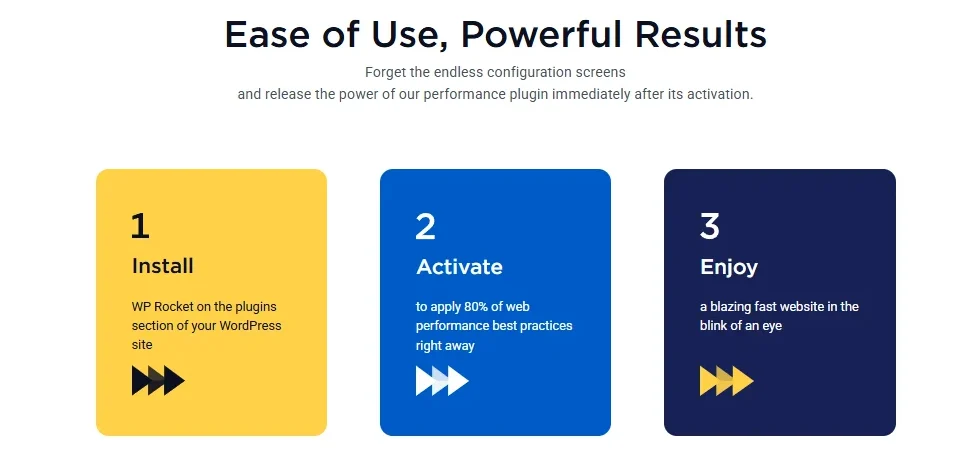
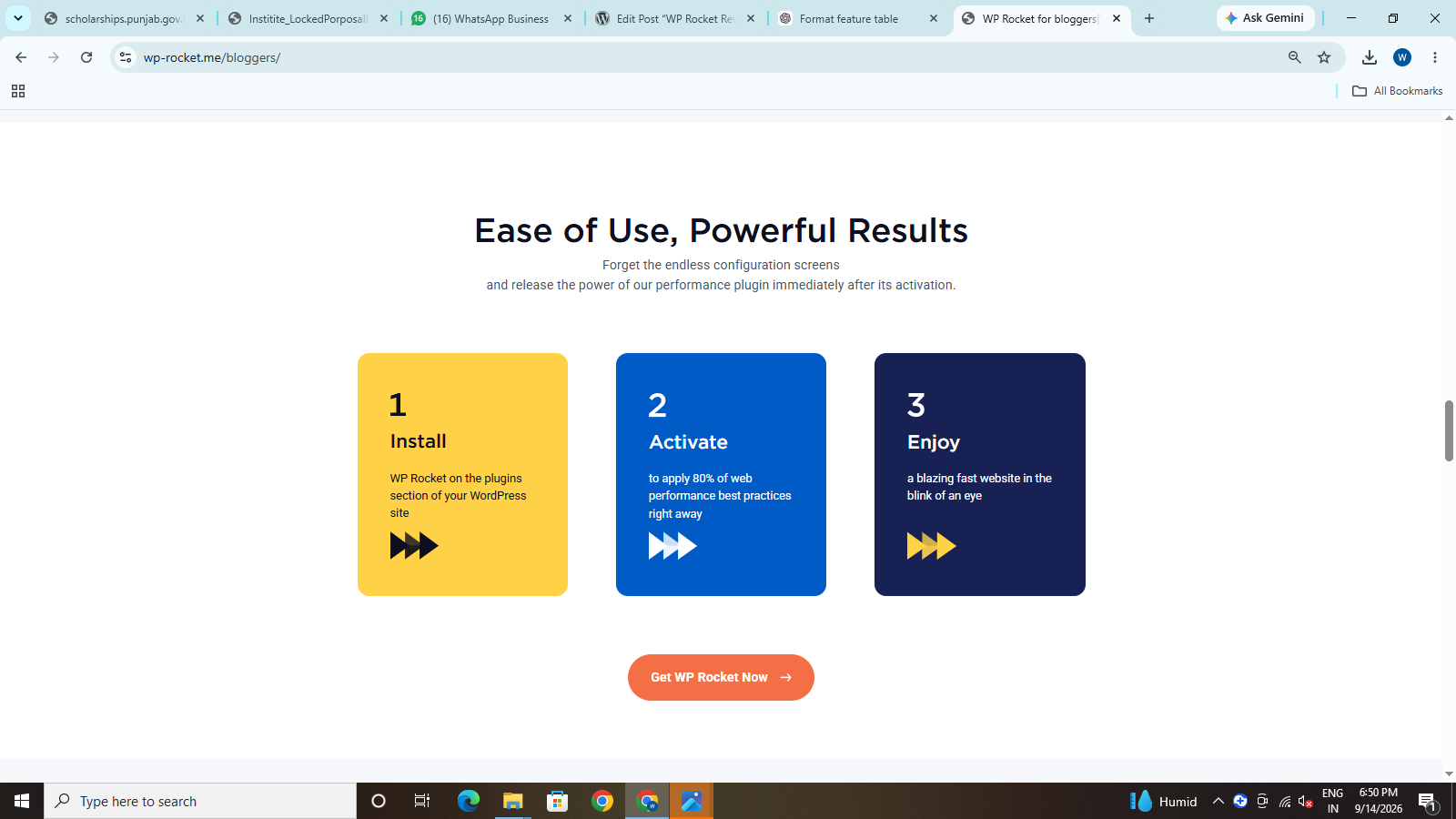
WP Rocket is designed to make WordPress performance optimization easier for beginners. After activation, its basic caching features can begin working without requiring extensive configuration.
However, advanced optimization settings should be enabled gradually. Different themes, plugins, and hosting environments can respond differently to CSS and JavaScript changes.
Recommended Setup Approach
- Install and activate WP Rocket.
- Clear and preload the cache if necessary.
- Test your homepage and important pages.
- Check menus, forms, and other interactive elements.
- Test both mobile and desktop layouts.
- Enable additional optimization features one at a time.
- Test again after each major change.
This approach makes it easier to identify which setting may have caused a problem.
WP Rocket and Website Speed Tests
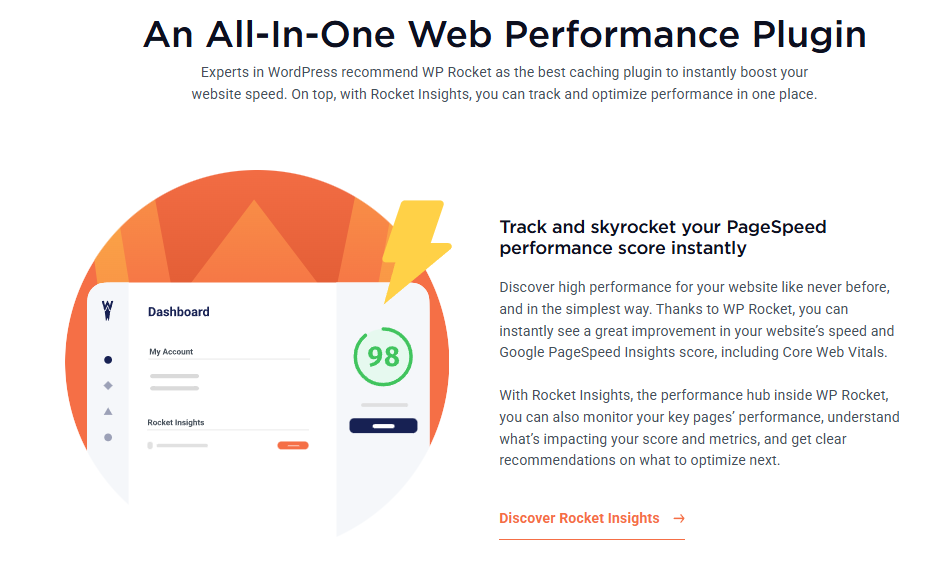
You may see improvements in tools such as Google PageSpeed Insights after optimizing your website.
However, you should not buy WP Rocket simply because you want a perfect PageSpeed score.
A score of 100 is not guaranteed, and a performance plugin cannot control every factor affecting website speed.
For example, external advertising scripts, analytics, fonts, videos, third-party services, hosting performance, and large images can all affect loading.
A better approach is to focus on actual user experience and Core Web Vitals rather than chasing a single number.
WP Rocket for Core Web Vitals
Core Web Vitals measure important aspects of the user experience.
WP Rocket provides features that can help with several performance factors.
For example, page caching can reduce server processing, while JavaScript optimization can reduce the amount of work required during page loading. WP Rocket’s documentation specifically discusses page caching and JavaScript optimization in relation to LCP performance.
But Core Web Vitals are affected by the whole website.
Therefore:
WP Rocket can help, but it is not a complete Core Web Vitals solution by itself.
WP Rocket for WooCommerce
WooCommerce websites need special consideration because shopping carts, checkout pages, account pages, and other areas can contain dynamic information.
WP Rocket says its eCommerce optimization excludes sensitive pages from caching so that caching does not interfere with the purchasing process.
This makes WP Rocket potentially useful for WooCommerce stores, but store owners should still test:
- Product pages
- Cart
- Checkout
- Account pages
- Login
- Coupons
- Payment processes
A performance change should never be considered successful if it breaks an important shopping function.
WP Rocket vs Free Caching Plugins
One of the biggest questions is whether WP Rocket is better than free alternatives.
The answer depends on what you need.
A free plugin may be enough if:
- You have a small blog.
- Your hosting already provides strong caching.
- You are comfortable configuring performance settings.
- Your budget is limited.
WP Rocket may be more attractive if:
- You want an easier setup.
- You want several optimization features together.
- You manage business websites.
- You want premium support and updates.
- You do not want to spend a lot of time configuring multiple tools.
For example, LiteSpeed Cache can be especially interesting when a website is hosted on LiteSpeed because it provides server-level caching capabilities.
So the “best” caching plugin is not automatically the same for every WordPress website.
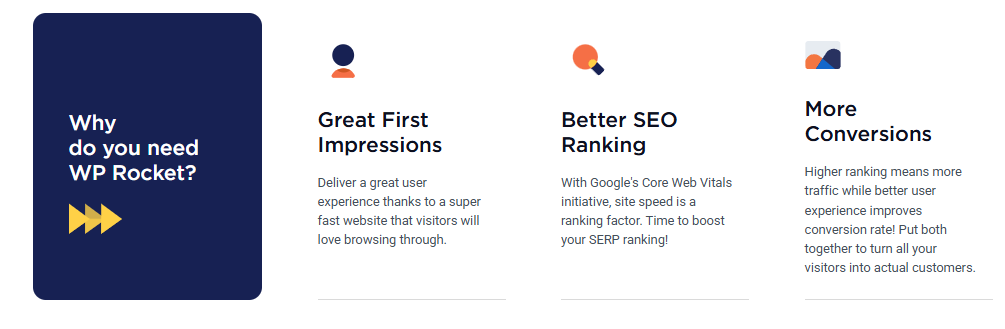
Who Should Use WP Rocket?
WP Rocket can be a good choice for:
Bloggers
If you run a content-focused WordPress blog and want a straightforward way to improve performance, WP Rocket can be useful.
Small Businesses
Business websites often need good speed without requiring the owner to become a performance expert.
Agencies and Freelancers
People managing several WordPress websites may appreciate having a familiar performance tool across different projects.
WooCommerce Websites
WP Rocket’s eCommerce-related caching controls can make it suitable for stores, provided the important dynamic areas are properly tested.
Who Should Avoid WP Rocket?
WP Rocket may not be the best choice if:
- You only want free plugins.
- Your hosting already provides excellent built-in caching.
- You are already using another full caching/optimization system.
- Your website has a very small performance budget.
- You are not willing to test optimization changes.
If your hosting provider already includes advanced caching, installing another caching system without checking compatibility can create unnecessary complexity.
Common WP Rocket Mistakes to Avoid
This section is especially important for beginners.
1. Installing Multiple Caching Plugins
Do not install several plugins that perform the same caching and optimization functions without understanding how they interact.
This can create conflicts.
2. Activating Every Setting at Once
If something breaks after activating ten different settings, it becomes difficult to identify the cause.
Enable advanced features gradually.
3. Not Testing Forms
After enabling JavaScript optimization, test contact forms, search boxes, menus, sliders, and other interactive elements.
4. Ignoring Mobile Performance
A website can appear fast on a desktop computer but perform differently on mobile devices.
Always test both.
5. Expecting WP Rocket to Fix Poor Hosting
A performance plugin cannot completely compensate for poor server performance.
Good hosting remains an important part of website speed.
6. Chasing a Perfect Page Speed Score
Do not focus only on achieving 100/100.
Real-world loading performance and user experience matter more than a single score.
WP Rocket Review: Performance
Is WP Rocket Easy to Use?
WP Rocket is designed to make WordPress performance optimization easier for beginners. After activation, its basic caching features can begin working without requiring extensive configuration.
However, advanced optimization settings should be enabled gradually. Different themes, plugins, and hosting environments can respond differently to CSS and JavaScript changes.
Recommended Setup Approach
- Install and activate WP Rocket.
- Clear and preload the cache if necessary.
- Test your homepage and important pages.
- Check menus, forms, and other interactive elements.
- Test both mobile and desktop layouts.
- Enable additional optimization features one at a time.
- Test again after each major change.
This approach makes it easier to identify which setting may have caused a problem.
Final Verdict
WP Rocket is worth considering if you want a straightforward way to improve WordPress caching and performance without managing several separate optimization tools.
Its combination of page caching, cache preloading, browser caching, CSS and JavaScript optimization, LazyLoad, database optimization, and other performance controls makes it more than a basic caching plugin.
However, it is not the best choice for everyone. The biggest downside is its paid-only model, especially for small websites with limited budgets. Website owners should also avoid activating optimization settings blindly because every WordPress website has a different combination of hosting, themes, plugins, and content.
Our recommendation: WP Rocket is a strong option for bloggers, small businesses, agencies, and WooCommerce websites that want an easy-to-manage performance plugin. If your hosting already provides excellent caching or you prefer a free solution, compare WP Rocket with alternatives such as LiteSpeed Cache before making a decision.
Was this article useful for you? Let us know your thoughts in the comment box below!
YES/NO