Website speed is an important part of running a WordPress website. A slow website can make visitors wait before they can read an article, open a page, submit a form, or complete a purchase.
The good news is that you do not always need advanced coding knowledge to improve WordPress performance. Many common speed problems can be fixed by optimizing images, reducing unnecessary plugins, using caching, choosing suitable hosting, and keeping WordPress updated.
In this guide, we will explain how to speed up a WordPress website in 2026 step by step. These methods are designed especially for beginners who want to improve website performance without making complicated technical changes.
Why Is WordPress Website Speed Important?
When someone visits your website, the browser has to download different resources before the page becomes usable. These can include:
- HTML files
- CSS files
- JavaScript
- Images
- Fonts
- Videos
- Plugin resources
- Theme resources
If there are too many or unnecessarily large resources, the page can take longer to load.
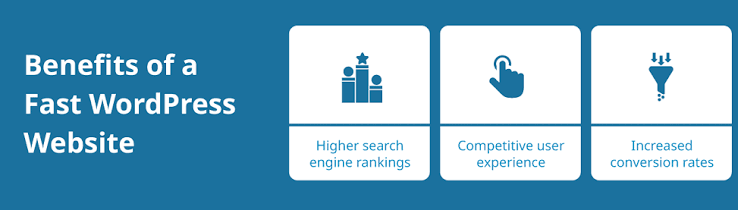
Website speed can affect several parts of your website experience.
1. Better User Experience
Visitors generally prefer websites that respond quickly. A faster website makes it easier for users to move between pages and find the information they need.
2. Search Performance
Page experience and performance are among the factors considered within Google’s broader search systems. Core Web Vitals are also used to evaluate important aspects of the user experience.
However, improving speed alone does not guarantee higher Google rankings. Content quality, relevance, technical SEO, links, and many other factors also matter.
3. Better Mobile Experience
Many visitors access websites from smartphones. Mobile users may also have slower or less reliable connections than desktop users.
Optimizing your website can therefore be particularly useful for mobile visitors.
4. Better Conversion Experience
For websites that sell products, collect leads, or provide services, a smoother experience can make it easier for visitors to complete important actions.
How to Check Your WordPress Website Speed
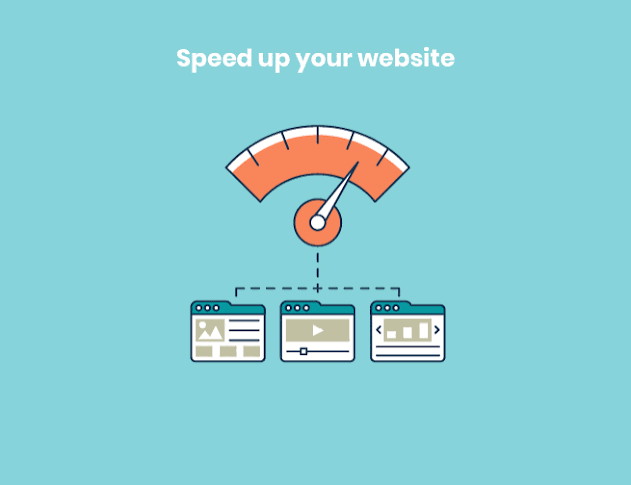
Before making changes, test your website.
One useful option is Google’s PageSpeed Insights. It provides performance information for both mobile and desktop versions of a webpage.
Do not focus only on the final score.
Instead, look at the actual recommendations and identify the biggest problems.
You can also test more than one important page, such as:
- Homepage
- Blog post
- Contact page
- Product page
- Landing page
A website may have one fast page and another page that loads much more slowly.
1. Choose Good WordPress Hosting
Your hosting server plays an important role in website performance.
If your hosting environment is slow or has limited resources, optimization plugins cannot completely solve every performance problem.
When choosing hosting, consider:
- Server performance
- Server location
- Available resources
- Caching options
- PHP support
- CDN integration
- Backup system
- Security
- Scalability
For a small personal blog, you may not need expensive infrastructure.
For a growing business website, online store, or high-traffic website, you may need more resources.
Important
Do not choose hosting only because it has the lowest introductory price.
Check the renewal price, available resources, performance features, and limitations before purchasing.
2. Use a Lightweight WordPress Theme
Your theme controls much of your website’s front-end structure.
A theme with unnecessary features, animations, scripts, and design elements can add extra resources to your pages.
Choose a theme that:
- Loads only necessary resources
- Is regularly updated
- Supports modern WordPress standards
- Works well with your page builder
- Does not include unnecessary features
- Provides responsive design
You do not need a complicated theme to create a professional website.
For a blog, a simple and lightweight design can often be enough.
3. Optimize Your Images
Large images are one of the most common causes of slow-loading pages.
For example, uploading a 5 MB image when the displayed image only needs to be a few hundred kilobytes creates unnecessary data for visitors to download.
Before uploading images:
- Resize them to an appropriate dimension.
- Compress them.
- Use a suitable modern image format when practical.
- Avoid uploading unnecessarily large original files.
Example
If an article displays an image at around 800 pixels wide, you may not need to upload a 5000-pixel-wide image.
Also remember that image optimization does not mean making every image extremely small. You should balance file size and visual quality.
4. Use WebP or Other Modern Image Formats
Modern image formats can reduce image file sizes while maintaining good visual quality.
WebP is widely supported and can be useful for many WordPress websites.
Depending on your WordPress setup and image optimization solution, you may also encounter newer formats such as AVIF.
The important thing is to use a format that provides a good balance between quality, compatibility, and file size.
5. Enable Browser Caching
Browser caching allows certain website resources to be stored temporarily in a visitor’s browser.
When the visitor returns to your website, the browser may not need to download every resource again.
Caching can be configured through:
- Your hosting provider
- A WordPress caching plugin
- Server-level configuration
Caching settings vary depending on your hosting environment, so avoid enabling random settings without understanding what they do.
6. Use a WordPress Caching Plugin
Caching plugins can make WordPress websites faster by creating optimized versions of pages and reducing the amount of work required from the server.
Depending on the plugin, features may include:
- Page caching
- Browser caching
- CSS optimization
- JavaScript optimization
- Image lazy loading
- Database optimization
- Cache preloading
However, more settings do not automatically mean better performance.
Start with basic caching and test your website after each major change.
If a caching feature breaks your menu, forms, layout, or interactive elements, disable that feature and test again.
7. Reduce Unnecessary Plugins
Plugins add functionality to WordPress, but every plugin should have a purpose.
Having many plugins does not automatically make a website slow. The impact depends on what each plugin does and how efficiently it is developed.
Still, unnecessary plugins should be removed.
Check your WordPress dashboard and ask:
- Do I still use this plugin?
- Does another plugin already provide this feature?
- Is this plugin updated regularly?
- Does it load resources on pages where they are not needed?
- Is there a simpler alternative?
Deactivate and delete plugins you no longer need.
Always make a backup before making major changes.
8. Keep WordPress, Themes, and Plugins Updated
Outdated software can cause compatibility, security, and performance problems.
Regularly check for updates for:
- WordPress core
- Themes
- Plugins
- PHP version through your hosting environment
Before major updates, keep a recent backup.
If you manage a business website, consider testing significant updates on a staging environment first.
9. Optimize CSS and JavaScript
CSS controls the visual appearance of your website, while JavaScript can add interactive functionality.
Some websites load more CSS and JavaScript than necessary.
Optimization tools may offer features such as:
- Minification
- Combining files
- Removing unused CSS
- Delaying non-critical JavaScript
- Deferring JavaScript
These settings can improve performance, but they can also cause design or functionality problems if configured incorrectly.
After changing optimization settings, test:
- Navigation menus
- Contact forms
- Buttons
- Sliders
- Login pages
- Checkout
- Mobile layout
Never assume a website is working correctly just because the homepage looks fine.
10. Enable Lazy Loading for Images
Lazy loading means certain images are loaded when they are close to becoming visible to the visitor rather than loading every image immediately.
This can reduce the amount of data loaded when the page initially opens.
It is especially useful for long blog posts containing many images.
However, important above-the-fold images should be handled carefully. You generally do not want to delay the image that forms an important part of the initial page experience.
11. Use a Content Delivery Network (CDN)
A CDN stores or serves website resources through a distributed network of servers.
Instead of every visitor receiving static resources from one origin server, a CDN can serve cached resources from a location that may be closer to the visitor.
A CDN can be particularly useful for websites with visitors from multiple geographic regions.
Depending on your setup, a CDN may help deliver:
- Images
- CSS files
- JavaScript files
- Fonts
- Other static resources
CDN configuration differs between providers, so check your provider’s documentation before changing advanced settings.
12. Reduce Heavy Videos and Embedded Content
Videos can consume significant resources.
Instead of automatically loading large videos on every page, consider:
- Using a thumbnail before playback
- Embedding videos only where necessary
- Avoiding multiple video embeds on one page
- Compressing self-hosted videos
- Using an appropriate video platform when suitable
The same principle applies to other third-party embeds.
Maps, social media feeds, advertising scripts, chat widgets, and analytics tools can all add requests and JavaScript to a page.
Only use third-party services that provide real value.
13. Clean Your WordPress Database Carefully
Over time, a WordPress database can accumulate unnecessary information, including:
- Post revisions
- Spam comments
- Trashed content
- Temporary data
- Unused metadata
Database optimization can help keep your WordPress installation organized.
However, database cleanup should be done carefully.
Always create a backup before performing database optimization.
Do not manually delete database tables unless you know exactly what they contain.
14. Limit External Fonts and Third-Party Scripts
Fonts can add additional requests to your website.
Similarly, third-party scripts may come from:
- Analytics platforms
- Advertising networks
- Social media widgets
- Chat systems
- Tracking services
Review your website and remove services you no longer use.
If a third-party script is necessary, load it in a way that minimizes its impact on the initial page experience where technically appropriate.
15. Improve Core Web Vitals
Google’s Core Web Vitals focus on important aspects of loading, responsiveness, and visual stability.
The three main metrics are:
Largest Contentful Paint (LCP)
LCP measures how quickly the main content becomes visible.
Large images, slow servers, render-blocking resources, and inefficient page structures can affect it.
Interaction to Next Paint (INP)
INP measures how responsive a page is to user interactions.
Heavy JavaScript can make interactions feel slow.
Cumulative Layout Shift (CLS)
CLS measures unexpected movement of page content during loading.
For example, if an image loads without reserved dimensions and pushes text downward, the page can shift unexpectedly.
Improving Core Web Vitals therefore involves more than simply compressing images.
16. Avoid Too Many Page Builder Elements
Page builders can make website design easier, but adding excessive elements can increase page complexity.
Try to keep pages simple.
Instead of creating a page with:
- Multiple sliders
- Animated sections
- Large background videos
- Many widgets
- Numerous popups
- Several third-party integrations
use only the elements that actually improve the visitor’s experience.
A clean page can be easier to maintain and optimize.
17. Test Your Website After Every Major Change
This is one of the most important steps.
Do not install five optimization plugins and change dozens of settings at the same time.
Instead:
- Make one significant change.
- Clear the relevant cache.
- Test the website.
- Run a speed test.
- Check mobile and desktop.
- Compare the results.
This makes it much easier to identify which change helped or caused a problem.
Common WordPress Speed Optimization Mistakes
Mistake 1: Installing Too Many Optimization Plugins
Multiple plugins may perform overlapping tasks and create conflicts.
Mistake 2: Chasing a Perfect Speed Score
A high score is useful, but your actual website experience matters too.
Mistake 3: Ignoring Mobile Performance
Always check how your website performs on mobile.
Mistake 4: Uploading Huge Images
Large images can unnecessarily increase page weight.
Mistake 5: Enabling Every Optimization Setting
Some advanced settings can break website functionality.
Mistake 6: Ignoring Hosting
Plugin optimization cannot compensate for every hosting limitation.
Mistake 7: Not Testing After Changes
A faster homepage is not useful if your contact form or checkout stops working.
Simple WordPress Speed Optimization Checklist
Use this checklist when optimizing your website:
- Test your website before making changes
- Choose suitable WordPress hosting
- Use a lightweight theme
- Compress images
- Use modern image formats
- Enable appropriate caching
- Remove unused plugins
- Keep WordPress updated
- Optimize CSS and JavaScript carefully
- Use lazy loading where appropriate
- Consider a CDN
- Reduce unnecessary third-party scripts
- Optimize database safely
- Check Core Web Vitals
- Test mobile performance
- Test forms and important functions
- Re-test after major changes
How Fast Should a WordPress Website Be?
There is no single loading-time number that guarantees a good website experience for every visitor.
Performance depends on:
- Device
- Internet connection
- Server location
- Page size
- Website functionality
- Browser
- Caching
- Third-party resources
Instead of focusing only on one number, look at real performance data and identify the biggest bottlenecks.
A useful goal is to make important pages load and become interactive as efficiently as reasonably possible.
Final Thoughts
Speed optimization is not a one-time task. As you add new posts, images, plugins, tracking tools, and other features, your website can become heavier over time.
The best approach is to keep your WordPress website simple and regularly monitor its performance.
Start with the basics: good hosting, optimized images, caching, a lightweight theme, fewer unnecessary plugins, and careful JavaScript and CSS optimization.
Then use performance testing tools to identify the remaining problems.
You do not need to make every technical setting complicated. In many cases, a few well-planned improvements can make a noticeable difference to the overall website experience.
For WPvalues readers, the main takeaway is simple: do not optimize for a score alone. Optimize your website for real visitors.