Building a professional WordPress website no longer requires expensive developers or advanced coding skills. With the right website builder, you can create stunning landing pages, business websites, affiliate marketing pages, and online stores using a visual drag-and-drop editor.
Elementor has become a popular choice for WordPress users who want greater creative freedom and control over their website design. Its visual editor, extensive design options, reusable templates, and advanced customization tools make it an attractive solution for bloggers, freelancers, agencies, and business owners.
But there is one important question: Is Elementor Pro worth paying for in 2026, or can you build a professional website with the free version?
In this detailed Elementor review, we will compare Elementor Free and Pro, examine the most important features, explore pricing and performance, evaluate the pros and cons, and compare Elementor with popular alternatives such as Gutenberg, Divi, and Beaver Builder.
Whether you are launching your first WordPress website or upgrading an existing business site, this review will help you decide whether Elementor deserves a place in your website-building toolkit.
What Is Elementor?
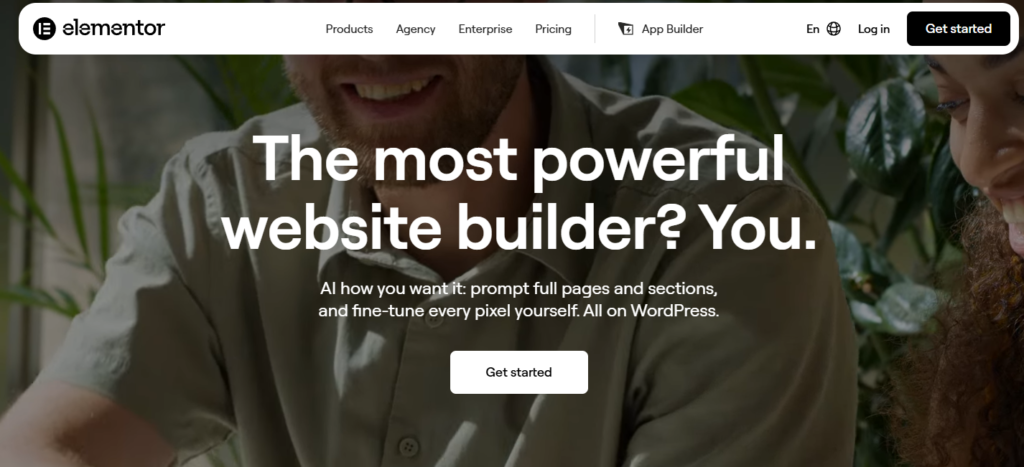
Elementor is a visual website builder for WordPress that lets you create and customize website layouts through a graphical interface. It provides a drag-and-drop editor, design controls, reusable elements, templates, and responsive editing options.
You can use Elementor to build different types of websites, including:
- Personal blogs and professional portfolios
- Business and company websites
- Landing pages for marketing campaigns
- Affiliate marketing websites
- Agency and freelancer portfolios
- Online stores powered by WooCommerce
- Service pages for consultants and professionals
- Lead-generation pages for businesses
Elementor offers a free plugin and paid subscriptions with additional features. The free version is a practical starting point for beginners, while paid plans unlock more advanced customization and website-building capabilities.
The platform has also continued to evolve, including its version 4 direction, which introduces a more component-based approach to building consistent designs. The exact features available depend on the plugin version and subscription you use.
Elementor Free vs Elementor Pro
One of the first decisions you need to make is whether to use the free version or upgrade to a paid plan.
The free version provides a visual editor for building page content. You can create headings, add images, insert buttons, arrange content, and adjust various design settings without paying for a subscription.
Elementor Pro builds on those capabilities by adding advanced widgets and tools for customizing more parts of a WordPress website.
Elementor Free
The free version is suitable for users who want to experiment with visual page building or create relatively simple pages.
Its main benefits include:
- A drag-and-drop visual editor
- Basic page layout and styling controls
- Text, image, heading, and button elements
- Responsive design controls
- Basic templates and reusable designs
- Compatibility with many WordPress themes
For a personal blog, a small informational website, or a simple portfolio, these features may be enough.
Elementor Pro
Elementor Pro is designed for users who need more control over their website’s design and functionality.
Depending on the selected plan, paid features can include:
- Theme Builder for custom headers, footers, and templates
- Advanced design and marketing widgets
- Form creation and lead-generation tools
- Popup Builder
- Dynamic content features
- Custom CSS and code options
- WooCommerce design tools
- Additional integrations and professional templates
The exact availability of features varies by subscription. For example, some entry-level plans may include the Form Builder but have limitations on form submissions or exclude features such as Popup Builder and eCommerce tools.
If you need these capabilities for your business, a paid plan may save time and reduce the need for additional plugins.
Elementor Features Reviewed
Let’s look at the main features that make Elementor attractive to WordPress users.
1. Drag-and-Drop Visual Editor
The visual editor is Elementor’s main attraction. It allows you to build page layouts by adding elements and arranging them on the screen.
For example, suppose you want to create a homepage for a hosting review website. You could add a heading, write an introduction, insert a hosting comparison table, display review cards, and add buttons linking to individual reviews.
You can adjust typography, spacing, colors, backgrounds, borders, and alignment through the editor rather than manually writing code for every change.
This approach can be helpful for beginners who want to create a professional-looking website without learning web development first.
However, more complicated designs can still require time to understand. You may also need basic CSS knowledge when you want to achieve a particular effect that is not available through the standard controls.
Our take: The editor is most valuable when you frequently create custom landing pages or need more layout flexibility than your theme provides.
2. Theme Builder
Theme Builder is one of the most useful reasons to consider Elementor Pro.
A traditional WordPress theme controls important parts of your website, including the header, footer, blog post layout, archive pages, and other templates. Customizing these areas may require theme settings, additional plugins, or code.
Elementor’s Theme Builder lets you design supported theme areas visually.
You can use it to create:
- Custom website headers
- Footers with menus and contact information
- Single blog post templates
- Blog archive and category layouts
- Search results pages
- Other supported theme templates
For example, if you operate a WordPress hosting review website, you could create a consistent article template with an introduction, a table of contents, review sections, pros and cons, and a final verdict.
You could then apply that design to supported posts rather than rebuilding the same layout for every article.
Theme Builder is especially valuable for agencies, content publishers, and businesses that want a consistent appearance across many pages.
Keep in mind that the exact templates you can customize depend on your plan and theme configuration.
3. Responsive Design Controls
A website must work well on desktops, tablets, and mobile phones. A layout that looks impressive on a large monitor may become difficult to read on a smaller screen.
Elementor includes responsive editing controls that allow you to adjust layouts for different screen sizes.
You can modify settings such as:
- Font sizes and text alignment
- Column and container widths
- Padding and margins
- Image sizes and positioning
- Element visibility
- Spacing between content blocks
For example, a three-column comparison section on desktop might need to become a single-column layout on mobile. Responsive controls help you make these changes without creating an entirely separate page.
Some advanced breakpoint options depend on the available version and configuration.
Remember that responsive controls do not automatically guarantee a good mobile experience. You should still test your pages on real devices or different viewport sizes, especially if they contain large tables, sliders, forms, or complicated layouts.
4. Widgets and Design Elements
Elementor provides widgets that let you add different types of content and functionality to your pages.
Basic elements help you create text-based layouts, while paid features expand your options for professional websites.
Depending on your plan, you may have access to elements for:
- Headings and text
- Images and image galleries
- Buttons and calls to action
- Testimonials and review displays
- Portfolio layouts
- Post listings
- Forms and marketing content
- Social icons and contact elements
- Product and WooCommerce content
These widgets can help you create more engaging pages without installing a separate plugin for every small design requirement.
For affiliate marketers, for example, buttons and custom content sections can make it easier to present product reviews, comparisons, and recommendations.
Nevertheless, avoid adding unnecessary widgets simply because they are available. A simpler page is often easier to maintain and may perform better than a design overloaded with animations, sliders, and decorative elements.
5. Form Builder and Lead Generation
Collecting leads is important for service businesses, agencies, consultants, and many online stores.
Elementor Pro includes form-building capabilities that let you create forms within the visual editor. Depending on the plan and configuration, you can build contact forms, inquiry forms, registration forms, and other lead-generation forms.
You can customize the form fields and appearance to match your website design.
Additional capabilities may include integrations with marketing services, post-submission actions, email notifications, and submission management. Check the feature list of your intended subscription because some plans have limitations.
For example, a web design agency could create a project inquiry form asking visitors about their business, website requirements, estimated budget, and preferred contact method.
Having design and form tools in one workflow can simplify website creation. However, you should still test email delivery, spam protection, privacy notices, and integrations before making the form publicly available.
6. Popup Builder
Popups can be used for newsletter subscriptions, special offers, announcements, and lead-generation campaigns.
Elementor’s Popup Builder allows users with eligible plans to design popups using its visual editor.
You can customize the popup’s layout, typography, buttons, images, and other design elements. Display conditions and triggering options help determine where and when a popup appears.
For example, a blogger might display a newsletter subscription popup on selected articles, while an online store might use an announcement popup to highlight a promotion.
Popups can be useful when implemented thoughtfully, but excessive popups can frustrate visitors and interrupt reading. Avoid displaying several overlays at once, and make it easy for users to close them.
If popups are an essential part of your marketing strategy, verify that the plan you choose includes the functionality you need.
7. WooCommerce Builder
If you operate an online store using WooCommerce, Elementor Pro’s eCommerce design tools may be particularly valuable.
They allow eligible users to customize supported parts of a WooCommerce store, including product pages and shop layouts. Higher-tier features may also provide controls for cart, checkout, account, and other transaction-related templates.
This gives you greater control over how products and store information appear.
For example, you could design a product page with a clear product image, pricing information, product description, trust information, and a prominent purchase button.
A consistent design can help customers navigate your store and understand the products you offer.
However, WooCommerce design customization does not automatically improve sales. Product quality, pricing, page speed, checkout usability, payment options, and customer trust remain important.
If your website sells products, check which eCommerce features are included in your chosen plan before purchasing.
8. Dynamic Content
Dynamic content is useful when your website contains structured information that changes from one page to another.
Instead of manually designing every page separately, you can create a template that displays content from WordPress.
Depending on your subscription and setup, Elementor can work with WordPress content, custom fields, and supported custom post types.
This can be useful for:
- Real estate listings
- Service directories
- Portfolio projects
- Product catalogs
- Staff or team profiles
- Custom review databases
For instance, a property website could use one template for multiple listings. Each listing could display its own title, images, price, location, and other stored information.
This can make large websites easier to manage, but advanced dynamic websites may require additional plugins or technical configuration.
9. Templates and Reusable Designs
Starting every page from scratch takes time. Elementor provides templates and reusable design options that can speed up the process.
You can begin with a pre-designed layout, replace its text and images, adjust the colors, and adapt the structure to match your brand.
Reusable templates can be especially useful when creating multiple landing pages or maintaining a consistent style across a content website.
Before publishing a template, review all its content. Replace sample text, update images, check button destinations, and ensure that the design matches your website’s branding.
A template is a starting point, not a substitute for useful and original content.
10. AI and Newer Editor Features
Elementor has continued to introduce new tools for website creation and workflow management.
Its AI-related capabilities may help users generate or refine text, layouts, images, and code, depending on the feature and subscription available.
Elementor’s version 4 direction also introduces a more component-based approach, including reusable components and design-system features. These tools aim to make consistent design easier to manage across a website.
Such capabilities can be helpful for freelancers and agencies that create many pages for different clients.
However, AI-generated content and code should always be reviewed before publication. Check factual accuracy, accessibility, mobile responsiveness, security, and compatibility with the rest of your website.
The availability of specific AI tools, usage credits, and newer editor features can change, so review the current official documentation before selecting a plan.
Elementor Pricing in 2026
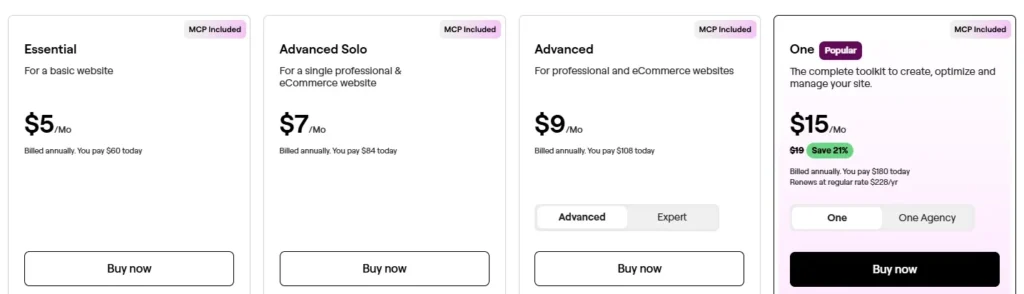
Essential – $5/month: Suitable for a basic website that needs Elementor Pro widgets and additional design tools.
Advanced Solo – $7/month: Designed for a single professional website or eCommerce project that requires more advanced features.
Advanced – $9/month: A suitable option for users who need professional website-building tools across up to three websites.
One – $15/month: Includes a broader toolkit for creating, optimizing, and managing a website, along with the features listed in the selected subscription.
Elementor offers free and paid options, but the cost of a paid subscription depends on the plan, website allowance, billing arrangement, and included features.
Because pricing and plan names can change, check the official pricing page before purchasing rather than relying on an old promotional price.
What should you compare before buying?
| Pricing factor | What to check |
|---|---|
| Website allowance | How many websites can use the subscription? |
| Theme Builder | Can you customize headers, footers, and post templates? |
| Forms | Are form creation and submission management included? |
| Popup Builder | Is popup functionality available on the plan? |
| WooCommerce | Does the plan support the store features you need? |
| Dynamic content | Are custom fields and post types supported? |
| Renewals | What is the regular renewal price? |
| Refund policy | What money-back terms apply to the purchase? |
An entry-level plan may be sufficient for a basic professional website, while a more advanced subscription can make sense for eCommerce stores or businesses that need extra functionality.
Freelancers and agencies should pay close attention to the number of permitted websites. Buying a plan that does not cover all your client projects can create additional costs later.
Is Elementor Pro expensive?
The answer depends on how you use it.
If you only need a simple text-and-image blog, a free builder or the default WordPress editor may be sufficient.
If you regularly create custom landing pages, advanced templates, forms, and marketing layouts, a paid subscription may save enough time to justify its cost.
You should also compare the cost of Elementor with the combined cost of alternative themes and plugins that would provide similar functionality.
Remember that an introductory price may not be the same as the renewal price. Calculate the longer-term cost before committing to an annual subscription.
Elementor Performance: Does It Slow Down WordPress?
Website speed is an important consideration when choosing a page builder.
Elementor offers considerable design flexibility, but the performance of an Elementor website depends on more than the builder itself. Hosting quality, theme choice, image sizes, plugins, fonts, animations, caching, and page complexity all influence loading times.
A simple Elementor page with optimized images may perform well. A page containing many large images, videos, animated elements, and third-party scripts may be slower.
Elementor has introduced performance-related options and improvements, including image-loading optimizations and element caching features. Availability and behavior depend on the installed version and configuration.
How to improve Elementor website speed
1. Choose reliable hosting. Select hosting that offers adequate server resources, caching support, and dependable performance.
2. Optimize images. Resize images to appropriate dimensions and use efficient formats such as WebP or AVIF when suitable.
3. Avoid unnecessary widgets. Use only the elements required to communicate your message.
4. Limit animations. Excessive motion effects can increase complexity and distract visitors.
5. Enable suitable caching. Use a compatible caching solution and test the result after configuration.
6. Review third-party plugins. Remove plugins that duplicate functionality or are no longer needed.
7. Test actual performance. Use Google PageSpeed Insights or another reliable testing tool to identify specific problems instead of assuming the page builder is always responsible.
8. Keep everything updated. Maintain supported versions of WordPress, Elementor, your theme, and your plugins. Back up your website before major changes.
For WPvalues readers comparing hosting services, it is also worth remembering that a fast hosting plan cannot compensate for every design or optimization problem. Good results usually require both suitable infrastructure and a well-built website.
Elementor Pros and Cons
Before deciding whether to upgrade, consider the advantages and limitations.
Pros of Elementor
- Beginner-friendly visual editing: Build page layouts without writing code for every element.
- Flexible design controls: Customize typography, spacing, colors, backgrounds, and layouts.
- Free version available: Try the builder before paying for advanced features.
- Advanced theme customization: Eligible plans allow you to design supported headers, footers, and templates.
- Marketing tools: Forms, popups, and other conversion-focused features can reduce reliance on separate plugins.
- WooCommerce design options: Useful for store owners who want greater control over product layouts.
- Responsive editing: Adjust designs for different screen sizes.
- Reusable templates: Speed up page creation and help maintain consistency.
- Broad range of use cases: Suitable for blogs, portfolios, service businesses, and many online stores.
Cons of Elementor
- Paid features require a subscription: Advanced tools may not be available in the free version.
- Renewal costs matter: Your long-term budget should account for the regular subscription price.
- Performance requires attention: Complex layouts and poorly optimized assets can slow a website.
- Learning curve for advanced designs: Beginners may need time to understand templates, containers, responsive settings, and dynamic content.
- Potential plugin overlap: Installing several tools that perform the same tasks can complicate maintenance.
- Dependence on the builder: Rebuilding pages in another editor may require substantial work if you later switch platforms.
- Not every feature is in every plan: You must check plan-specific limitations before purchasing.
Overall, Elementor offers substantial design flexibility, but users should avoid paying for features they will not use.
Who Should Use Elementor?
Elementor can be a good fit for several types of WordPress users.
Bloggers and Affiliate Marketers
Bloggers who need custom landing pages, comparison layouts, product highlights, or promotional pages may benefit from Elementor.
Affiliate marketers can use it to create attractive calls to action and consistent page layouts. However, the quality of the content and the usefulness of the recommendations remain more important than decorative design.
If your website primarily publishes standard articles, the free version or WordPress block editor may be enough.
Small Business Owners
Small businesses can use Elementor to create service pages, contact pages, testimonials, and lead-generation layouts without hiring a developer for every visual change.
This can be useful for local businesses, consultants, agencies, and professional service providers.
Freelancers and Web Designers
Freelancers may appreciate the ability to reuse templates and customize page layouts for different clients.
A paid plan can be valuable if the time saved on recurring projects exceeds the subscription cost. Before buying, confirm the website allowance and whether the plan includes the tools required for client work.
WooCommerce Store Owners
Store owners who want greater control over product pages and supported shop templates may find Elementor Pro useful.
However, if you only need a basic store layout, compare Elementor with your existing WooCommerce theme before upgrading.
Who May Not Need Elementor Pro?
You may not need a paid subscription if:
- Your theme already provides all the design controls you need.
- You mainly publish standard blog posts.
- You prefer the native WordPress block editor.
- You do not need advanced forms, popups, or theme templates.
- You want to minimize recurring website expenses.
In these situations, begin with free tools and upgrade only when you identify a genuine limitation.
Elementor vs Other WordPress Page Builders
Elementor is not the only option for creating WordPress websites. The best alternative depends on your preferred workflow, design needs, budget, and existing setup.
Elementor vs Gutenberg
Gutenberg is WordPress’s built-in block editor. It is suitable for writing articles and building many pages with blocks.
Elementor offers a separate visual design environment with its own widgets, controls, and advanced layout features.
Choose Gutenberg if you prefer a native WordPress workflow and want to keep your setup relatively simple. Consider Elementor if you need more visual design control or want to create advanced page layouts through its editor.
Elementor vs Divi
Divi is another visual website-building solution with extensive design controls and templates.
Elementor may appeal to users who prefer its editor and widget ecosystem. Divi may appeal to those who prefer its design workflow and available licensing options.
Compare the current pricing, site allowances, template systems, and long-term costs before choosing.
Elementor vs Beaver Builder
Beaver Builder is a visual page builder known for its straightforward editing workflow.
Elementor offers a broad range of design and marketing features, depending on the plan. Beaver Builder may be attractive to users who prefer its interface and approach to page building.
The best option is the one that fits your workflow without adding unnecessary complexity.
Elementor vs Other Block-Based Builders
Several WordPress themes and block-based tools let users create page layouts through the native editor.
These may be worth considering if you prioritize working within the WordPress block system. Elementor may be more suitable if you prefer its dedicated visual editor and the additional design controls it offers.
Do not select a builder based on feature count alone. Consider the learning curve, performance, maintenance requirements, and ease of moving your content in the future.
How to Install Elementor on WordPress
Getting started with Elementor is relatively straightforward.
Step 1: Install the Free Plugin
Log in to your WordPress dashboard.
Go to Plugins → Add New Plugin, search for Elementor, and install the official plugin. Activate it after installation.
Step 2: Open a Page
Navigate to Pages → Add New or open an existing page you want to edit.
Select the option to edit the page with Elementor when available.
Step 3: Add and Arrange Elements
Use the editor to add headings, images, text, buttons, and other supported elements.
Adjust the layout and styling to match your website’s design.
Step 4: Review Responsive Layouts
Check how the page appears on desktop, tablet, and mobile views. Correct any problems with text sizes, spacing, images, and element positioning.
Step 5: Publish and Test
Preview the page before publishing it.
After publication, test links, buttons, forms, navigation, and page speed. Check the page on a mobile device as well as a desktop.
Step 6: Upgrade if Needed
If you require Theme Builder, advanced forms, popups, dynamic content, or WooCommerce customization, review the available paid plans.
Purchase through the official Elementor website and install the paid plugin according to the instructions provided in your account.
Is Elementor Good for SEO?
Elementor can be used to create SEO-friendly WordPress pages, but using the builder does not automatically improve search rankings.
Search performance depends on many factors, including content quality, search intent, technical SEO, internal links, page experience, and competition.
To improve the SEO of an Elementor website:
- Write helpful, original content that answers readers’ questions.
- Use clear headings in a logical hierarchy.
- Optimize images and add descriptive alt text where appropriate.
- Write useful title tags and meta descriptions using an SEO plugin.
- Create internal links to relevant articles and category pages.
- Keep pages fast and mobile-friendly.
- Avoid unnecessarily complicated layouts that make content difficult to access.
- Test important pages for accessibility and usability.
If you use Rank Math on your WordPress website, you can continue using it to manage SEO titles, meta descriptions, schema settings, sitemaps, and other supported SEO tasks.
Elementor and Rank Math serve different purposes: Elementor focuses on page design, while Rank Math helps manage many on-page and technical SEO settings.
Elementor Customer Support and Documentation
Support is another factor to consider before purchasing a premium tool.
Elementor provides official documentation and a Help Center with instructions for its editor, templates, subscriptions, and performance settings.
These resources can help you troubleshoot common problems and understand available features.
Support options may depend on your subscription and the nature of your issue. Check the current plan details if access to specific support services is important to you.
Before installing updates or making significant design changes, maintain a backup of your website. If you encounter an editor issue, check plugin compatibility, server requirements, and the official troubleshooting documentation before making major changes to a live website.
Final Verdict: Is Elementor Pro Worth It in 2026?
Elementor remains a strong option for WordPress users who want visual control over their website design. Its drag-and-drop editor makes page creation approachable, while its paid features can help businesses and professionals build more sophisticated websites.
The free version is a sensible starting point for beginners, personal blogs, and simple websites. Elementor Pro becomes more attractive when you need advanced theme customization, professional widgets, marketing forms, popup functionality, dynamic content, or WooCommerce design tools.
However, the paid version is not essential for everyone. If your theme and the standard WordPress editor already meet your needs, you may be better off spending your budget on hosting, content, security, or performance improvements.
Our recommendation: Start with the free version, identify the features you genuinely need, and upgrade only when the additional tools justify the subscription cost. Review the current plan limits and renewal pricing before purchasing.
For users who regularly create custom landing pages, client websites, and advanced WordPress layouts, Elementor Pro can be a worthwhile investment. For a straightforward content website, the free version may be all you need.
Ready to explore Elementor? Visit the official website to review its latest plans, features, and subscription terms before making a decision.